

-
Journey Stage
All Stages
-
Team
Marketing, Sales
-
Expertise Level
Beginner, Intermediate, Expert
Contents
Partner with Demandbase Experts
Get tailored strategies and insights to optimize your approach, drive engagement, and unlock new opportunities.
Most people use AI by typing the first thing that comes to mind.
This playbook teaches a different approach: prompting with intent.
One thing to set straight first, because it shapes everything that follows. This guide is written specifically for Demandbase AI Chat, not general-purpose tools like ChatGPT, Claude, or Gemini. The difference matters. A standard LLM answers from its training data and whatever context you paste in, so good prompting is mostly about supplying enough background.
Demandbase AI Chat is already grounded in your live GTM data: accounts, contacts, opportunities, campaigns, buying groups, engagement, and intent signals. You don’t prompt it to explain your pipeline; you prompt it to interrogate your pipeline. That shifts the skill from feeding context to asking precise, well-scoped questions of data the system already holds.
You’ll learn a repeatable framework for getting precise, actionable answers from Demandbase AI Chat, regardless of your role, your question, or how your data is structured.
Demandbase AI Chat can help sales, marketing, and RevOps teams turn GTM data into clear next steps. But the quality of the answer depends on the quality of the prompt.
A vague question returns a vague answer. A well-built prompt returns something specific, prioritized, and ready to act on.
What you’ll learn
By the end of this playbook, you’ll know how to:
- Ask questions in Demandbase AI Chat that drive real outcomes.
- Understand what data Demandbase AI Chat can and cannot access.
- Build stronger prompts using the FIND Framework.
- Create cross-object prompts that drive more powerful insights and next steps
- Avoid the most common prompt patterns that produce weak results.
- How to verify Demandbase AI Chat results.
Why is this important?
You have more data on your accounts, contacts, buying groups, campaigns, and pipeline than ever before.
The challenge is not access to data. The challenge is knowing what to do with it.
Demandbase AI Chat helps answer practical GTM questions in plain language:
- Which accounts should reps call today?
- Which buying group members are warming up but have not been touched?
- Which MQAs are sitting untouched while marketing keeps spending?
- Which campaigns are influencing account behavior?
- Which pipeline accounts are at risk?
- Which accounts are engaging but not progressing?
You do not need to build a new dashboard, wait for a report, or manually stitch data together. You can ask a question and get an answer you can act on.
But Demandbase AI Chat can only return what you ask for.
That is why prompting matters.
What you need to get started
Before you begin, make sure you have:
- Access to Demandbase AI Chat.
- Knowledge of live integrations and setup within Demandbase.
- A clear business question or decision you want to support.
- Exact names for any lists, segments, campaigns, journey stages, personas, buying groups or fields you want to reference.
Not all data objects described in this playbook may be available in your instance. Prompt this to learn what data is available in your tenant
- “Explain what sources and data objects that are available. Also check if Buying Groups are set up. Put it into a table with source as a column and data objects from the source as the other column.”
Step-by-step playbook
Part 1: Get started with Demandbase AI Chat
Step 1. Start with a business decision
Before typing a prompt, decide what you need the answer to help you do.
You might be trying to:
- Prioritize accounts for sales outreach.
- Find contacts at high-fit accounts.
- Identify MQAs that need sales follow-up.
- Understand whether ad campaigns are driving account website visits.
- Audit buying group coverage.
- Review pipeline health.
- Spot accounts with strong engagement but low sales activity.
Do not start with, “What data can I pull?”
Start with, “What decision am I trying to make?”
Step 2. Use Demandbase AI Chat to move from data to action
Demandbase AI Chat is designed to answer GTM questions using the Demandbase data you already have.
That means your prompt should not just ask for a list. It should tell Demandbase AI Chat what makes the list useful.
For example, instead of asking for “my accounts,” tell it which accounts matter, what conditions they should meet, what fields you need, and how the results should be sorted.
A good prompt turns Demandbase AI Chat into a workflow tool, not just a search box.
Part 2: Understand why prompting matters
Step 1. Compare weak prompts to strong prompts
A weak prompt is usually incomplete. It may ask for the right general thing, but it does not give Demandbase AI Chat enough direction.
A strong prompt tells Demandbase AI Chat:
- Which data object to look at.
- Which filters to apply.
- Which time window matters.
- Which fields to return.
- How to sort the result.
- What action the output should support.
| ❌ Weak Prompt | ✅ Strong Prompt |
|---|---|
| Show me my accounts. | Show me all accounts owned by Sarah Chen in MQA or Engaged stage with a pipeline-predict score above 70. Sort by engagement minutes in the last 7 days. |
| Find contacts at Salesforce. | Find VP and Director level contacts at Salesforce. Show first name, last name, title, and email. |
| Which accounts need attention? | Pull all accounts owned by James Park in MQA or Engaged stage. Flag any with more than 30 days in stage or fewer than 5 engagement minutes in the last 7 days as needing attention. |
| Show me intent data. | Find accounts in the Aware or Engaged journey stage with at least 3 web visits in the last 30 days and a qualification score above 60. Sort by engagement minutes descending. |
Step 2. Notice what the strong prompts have in common
The strong prompts are not longer just for the sake of being longer. They are more useful because they are more specific.
- They define the scope of the question.
- They give the AI clear conditions.
- They remove ambiguity.
- They ask for an output that can be acted on immediately.
- That is the goal of every prompt in this playbook.
Step 3. Treat every prompt as an instruction set
When you write a prompt, you are not just asking a question. You are giving Demandbase AI Chat a set of instructions.
A complete instruction set answers four questions:
- What should Demandbase AI Chat look at?
- Why do you need the information?
- What conditions should narrow the result?
- How should the answer be displayed?
This structure becomes the foundation for the FIND Framework later in the playbook.
Part 3: Understand the Demandbase data schema
Before you can write great prompts, you need to understand what Demandbase AI Chat actually knows.
This does not mean you need to become a data architect. It means you need to know which types of records Demandbase AI Chat can look across and how those records connect.
Step 1. Check what data is available in your instance
Not every Demandbase instance has the same data available.
What you can ask depends on:
- Which integrations are connected.
- Whether Demandbase Advertising data is available.
- Whether website engagement is being captured.
- Whether intent data is available.
- Whether Buying Groups have been configured.
Before you go further, paste this prompt into Demandbase AI Chat:
“Explain what sources and data objects that are available. Also check if Buying Groups are set up. Put it into a table with source as a column and data objects from the source as the other column.”
Use the result as your data map.
If an object or source is not available, do not build prompts that depend on it until that data is connected or configured.
Step 2. Identify the seven types of records Demandbase can look across
Think of Demandbase as having seven types of records it can look across. Every prompt you write asks a question about one or more of these records.
| Data Object | What it is and when to use it |
|---|---|
| Accounts | The companies you’re targeting or selling to. Everything in Demandbase connects back to an account. When you ask about pipeline, engagement, or intent, it almost always starts here. |
| People | The individuals at those companies, your buyers, decision-makers, and influencers. Find them by title, job function, seniority, engagement level, or company. |
| Opportunities | Open and closed deals in your CRM, connected to accounts. Use these to check pipeline health, spot at-risk deals, or see where reps have active coverage. |
| Buying Groups | The set of people at an account involved in the purchase decision. Demandbase tracks engagement across the whole group, not just one contact. |
| Buying Group Personas | Title and function based positions within a Buying Group, such as Marketing Executive, Procurement, IT, etc. Every persona also has a Buying Role such as Economic Buyer, Champion, or Technical Evaluator. Each persona maps to a real person at the account. Query at the persona level to see which roles are engaged and which have coverage gaps. |
| Ad Campaigns | Paid advertising programs running through Demandbase Advertising. See which accounts are being reached, how they’re engaging, and where spend is going. |
| Engagement & Intent | The activity signals from your prospects and customers: website visits, email activity, marketing program membership, 2nd or 3rd intent signals, and sales activities. These tell you what people and accounts are doing, not just who they are. |
Step 3. Understand how the records connect
Demandbase data is account-centered.
An account sits at the center. People belong to accounts. Buying Groups are built at the account level. Buying Group Personas map to people. Opportunities are tied to accounts. Demandbase Advertising Campaigns connect to accounts.
Engagement and intent signals attach either to accounts or to people, depending on whether the activity is anonymous or known.
When you write a cross-object prompt, you are following this same chain. 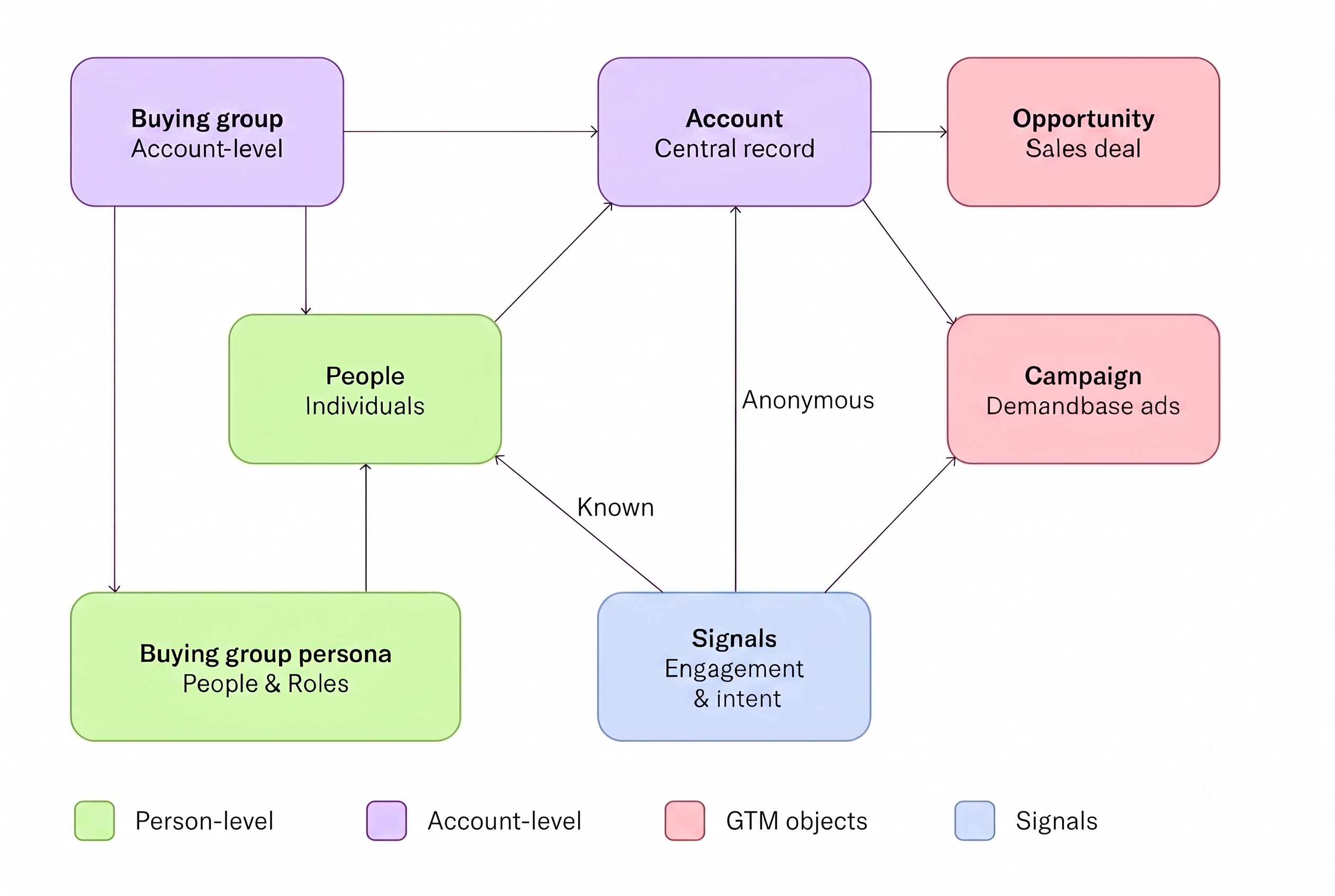
Step 4. Use the account as your default starting point
When in doubt, start with the account.
Most GTM questions eventually connect back to an account because accounts are the central record in Demandbase.
Start with accounts when your question involves:
- Journey stage
- Qualification score
- Pipeline-predict score
- Account engagement
- Intent
- Anonymous web visits
- Advertising campaign reach
- Opportunities
- Pipeline health
- MQA status
- Buying group coverage
Start with people when your question is specifically about named contacts, titles, job functions, known activity, or sales touches.
Start with Buying Groups when your question is about personas, roles, coverage gaps, or buying group engagement.
Part 4: Use engagement and signal language correctly
Engagement in Demandbase is not one number.
Different signals live in different places, and the language you use in a prompt determines what Demandbase AI Chat returns.
Step 1. Choose the right engagement measure
Demandbase measures engagement in multiple ways. Choosing the correct one matters because each measure answers a different kind of question.
| Engagement Measure | What it is and how to use it |
|---|---|
| Marketing Engagement Points | A calculated score that aggregates marketing-driven activity across a time window: web visits, emails, program membership, ads, and more. This is your primary signal for whether an account or person is engaging with your brand. It is not a raw count of activities, it is a weighted rollup. |
| Overall Engagement Points | A calculated score that aggregates both marketing and sales activity combined. Use this as a broad signal only, not as a primary filter. When precision matters, use Marketing Engagement Points instead. |
| Sales Touches | Not a score. This is a raw count of discrete sales activities logged in your CRM: calls, emails, meetings. Always query it as a number with a time window: “fewer than 2 sales touches in the last 14 days.” |
Use this table as your reference whenever you are writing a prompt that includes engagement.
Step 2. Always include a time window
One rule applies to every engagement query:
Always include a time window.
“Marketing engagement points” is incomplete.
“Marketing engagement points in the last 30 days” is correct.
The time window tells Demandbase AI Chat whether you are looking for current activity, recent momentum, or longer-term engagement.
Use shorter windows when you need urgency.
Use longer windows when you need pattern recognition.
For example:
- Use the last 7 days to find what is hot right now.
- Use the last 14 days to assess recent sales follow-up.
- Use the last 30 days to understand meaningful engagement.
- Use the last 90 days when evaluating campaign or funnel performance.
Step 3. Know where activity signals live
Some activity signals live at the account level. Others live at the person level.
This matters because a prompt can only return results at the level where the signal exists.
- Account-level signals, including anonymous, third-party, and advertising activity.
- Marketing activities at the person level.
- Sales activities at the person level.
| Activity Type | Attaches to | Source | How to reference in a prompt |
|---|---|---|---|
| Second and Third-party intent signals | Account | Demandbase, Bombora, G2, TrustRadius, TechTarget | “accounts showing intent on [keyword] in the last [N] days” |
| Advertising Activities & Campaign Data | Account | Demandbase | “accounts with over [X] impressions in the last [N] days” |
| Anonymous web visits | Account | Demandbase website tag | “accounts with at least [N] anonymous web visits in the last [N] days” |
| Known website visits | Person | Marketing automation (Marketo, etc.) | “people with at least [N] known web visits in the last [N] days” |
| Email activities | Person | Marketing automation | “people who opened / clicked an email in the last [N] days” |
| Form Fills | Person | Marketing automation | “people that submitted any form in the last [N] days” |
| Program / campaign membership | Person | Marketo or CRM campaigns | “people who are members of [program/campaign name]” |
| Outbound emails | Person | CRM Activities | “sales touches, outbound emails, in the last [N] days” |
| Meetings set / held | Person | CRM Activities | “meetings booked or completed in the last [N] days” |
| Calls | Person | CRM Activities | “call activities in the last [N] days” |
Use this table whenever you are unsure whether to ask for an account-level signal or a person-level signal.
Part 5: Build prompts with the FIND Framework
Every strong Demandbase AI Chat prompt has the same underlying structure which follows the FIND Framework.
It is built around four components that work together to produce precise, actionable results.
Step 1. Use FIND as your prompt checklist
The FIND Framework gives you a repeatable way to build prompts.
| Letter | What it asks | Example | |
|---|---|---|---|
| F | Focus (Who/What) | What data object are you querying? Accounts, people, opportunities? | “Show me accounts owned by Sarah Chen…” |
| I | Intent (The Goal) | What do you actually want to do or decide with this information? | “…that I should prioritize for outreach this week” |
| N | Narrow (Filters) | What specific conditions, scores, stages, or time windows apply? | “…in MQA or Engaged stage with engagement above 20 mins in the last 7 days and pipeline-predict above 70” |
| D | Display (Output) | How should the results be structured? What fields, how many, sorted how? | “…show account name, journey stage, engagement minutes. Sort by pipeline-predict score. Return top 10.” |
Do not think of FIND as a rigid template. Think of it as a checklist.
Before you submit a prompt, make sure the prompt tells Demandbase AI Chat what to look at, why you need it, how to narrow it, and how to display the answer.
Step 2. Assemble the full FIND prompt
Here is a full FIND prompt:
“Show me accounts owned by Sarah Chen [F] that I should prioritize for outreach this week [I], in MQA or Engaged stage, with engagement above 20 minutes in the last 7 days and a pipeline-predict score above 70 [N]. Show account name, journey stage, engagement minutes, and pipeline-predict score. Sort by pipeline-predict score descending. Return top 10. [D]”
This works because it gives Demandbase AI Chat a complete instruction set.
It identifies the accounts in scope, explains the business goal, adds specific filters, and tells Demandbase AI Chat exactly how to structure the result.
Step 3. Use the framework in practice
You do not need to label each part of the prompt.
You do not need to write the parts in a specific order.
Before you hit enter, ask yourself:
- Have I said what I’m looking for?
- Have I said why I need it?
- Have I added the conditions that narrow it down?
- Have I said how I want the results?
If the answer is yes to all four, your prompt is ready.
Step 4. Add the most useful filters
Filters are what separate a useful answer from a vague one.
The more specific your filters, the more targeted and actionable your output will be.
| Filter Type | How to use it | Example |
|---|---|---|
| Journey Stage | “…in [stage] stage” or “…in [stage A] or [stage B] stage” | MQA, Engaged, SQL Opportunity, Pipeline, Aware, Target |
| Scores | “…with a [score name] above [number]” | qualification score above 70 | pipeline-predict above 60 |
| Owner / Rep | “…owned by [name or email]” | owned by james.park@company.com |
| Time windows | “…in the last [N] days” | engagement minutes last 7 days | web visits last 30 days |
| Buying Groups | “…engaged buying group members in last [N] days” | VP and Director level | job function: Marketing, Sales, IT |
| Firmographics | “…companies in [industry] headquartered in [city]” | industry: Financial Services | city: Chicago |
| Thresholds | “…with at least [N] [thing]” | at least 3 web visits | fewer than 2 sales touches |
| Changes/Trends | “…accounts with open opps and [trend]” | declining website traffic week over week | increasing website traffic week over week |
Use filters to narrow by stage, score, owner, time window, buying group, firmographic attributes, thresholds, or changes over time.
Step 5. Write for action, not exploration
A strong prompt should produce an answer that can be acted on immediately.
That means your prompt should tell Demandbase AI Chat how to prioritize the output.
Add sorting.
Add a new formula to sort by.
Add a result limit.
Add the fields your team needs.
Add flags when you want the AI to identify risk, gaps, or next-best-action opportunities.
For example:
“Flag any account with more than 45 days in stage or fewer than 3 sales touches in the last 14 days as at risk.”
That instruction turns a basic list into a decision-ready output.
Part 6: Build cross-object prompts
A single-object prompt asks one question about one thing.
A cross-object prompt spans how your Demandbase data is actually structured.
Most of the highest-value questions you ask Demandbase AI Chat will be cross-object questions.
Step 1. Recognize when your question spans multiple objects
You are writing a cross-object prompt when the question connects more than one part of the data model.
For example:
“Who should I call at my hottest accounts?” spans accounts and people.
“Which deals are at risk?” spans opportunities, accounts, and activities.
“Which MQAs has sales ignored?” spans accounts, engagement signals, and sales activity.
These are high-value questions because they do not just pull data. They connect signals across your GTM motion.
Step 2. Use the Three-Layer Model
Every cross-object prompt is built from up to three layers.
You do not always need all three layers, but understanding them helps you decide which to include.
| Layer | What it does | Example filter | Objects involved |
|---|---|---|---|
| 1: Account Filter | Defines which accounts are in scope based on firmographic or account-level activity criteria. | Industry = SaaS, journey stage = MQA, 5+ anonymous web visits in last 30 days | Account |
| 2: People / BG Filter | Narrows to specific people or buying group personas within those accounts. | BG Persona = RevOps, marketing engagement points > 50 in last 30 days | People, Buying Group, Personas |
| 3: Activity / Signal Filter | Surfaces the specific activities or signals driving the pattern. | 2+ sales touches in last 14 days, intent on [keyword] in last 30 days | Activities (all types) |
Use the three layers to move from broad context to specific action.
Start with the account filter.
Then add the people or buying group filter.
Then add the activity or signal filter.
Step 3. Apply the Cross-Object Prompt Formula
Use this formula when your question spans accounts, people, buying group members, contacts, or activity signals:
Find [people / buying group members / contacts]
from accounts that [account-level criteria, firmographic / intent / journey stage / engagement]
where [people-level criteria, role / title / persona / engagement]
and [activity signal, always with a time window].
Show [fields]. Sort by [field]. Return top [N].
This formula keeps your prompt structured.
It also prevents the most common cross-object mistake: asking for people-level answers from account-level signals, or account-level answers from people-level signals.
Step 5. Build cross-object prompts from broad to specific
When writing a cross-object prompt, build it in this order:
- Start with the accounts in scope.
- Then identify the people, buying group personas, or contacts you care about.
- Then add the signal or activity condition.
- Then specify the output fields.
- Then define sort order and result count.
This order mirrors the way Demandbase data connects.
It also makes your prompt easier to troubleshoot if the first result is not quite right.
Part 7: Apply prompting rules and avoid weak prompts
This section covers the rules that apply to every prompt you write, whether single-object or cross-object.
Step 1. Follow the core prompting rules
The original document includes seven rules for better Demandbase AI Chat prompts.
| # | Rule |
|---|---|
| 1 | Every engagement query must include a time window. “Marketing engagement points in the last 30 days” not “marketing engagement points.” No exceptions. |
| 2 | Sales engagement is a count, not a score. Say “fewer than 2 sales touches in the last 14 days” instead of “low sales engagement.” |
| 3 | Marketing Engagement Points are your primary signal for brand and campaign activity. Overall Engagement Points are a broad fallback only. |
| 4 | Intent signals attach to accounts, not people. You can’t ask “which person is showing intent.” Ask “which accounts show intent, then find people at those accounts.” |
| 5 | Anonymous web visits are attached to the account. Known website visits are attached to the person. Be explicit about which you mean. |
| 6 | Buying group engagement is the rollup of all recommended personas’ individual marketing activities. Always include a time window. |
| 7 | Always name your fields and specify sort order. Especially in cross-object prompts. A defined sort makes the output immediately actionable. |
Keep these rules nearby when you are building new prompts, especially when your prompt includes engagement, intent, web visits, buying groups, sales touches, or cross-object logic.
Step 2. Reference list and segment names exactly
Demandbase AI Chat can only work with what you give it.
If your prompt is ambiguous about which list, segment, field, or value you mean, the result may look right but pull from the wrong place.
Use exact list and segment names.
Do not write:
“Show me accounts from my target list.”
Write:
“Show me accounts from the ‘Q2 Enterprise Target’ list.”
“My target list” could mean anything. The exact list name is unambiguous.
Step 3. Name every field you want returned
Do not ask for “relevant info” or “the usual fields.”
Tell Demandbase AI Chat exactly what to show.
Do not write:
“Show me my MQA accounts with the relevant details.”
Write:
“Show me accounts in MQA stage. Include account name, owner, pipeline-predict score, and marketing engagement points in the last 30 days.”
What Demandbase AI Chat considers relevant may not match what you need for sales follow-up, campaign planning, or executive review.
Step 4. Use exact field values
Journey stage names, persona labels, campaign names, and other values are specific strings in your data.
Close-but-not-exact language can create incomplete or mismatched results.
Do not write:
“Accounts that are almost ready for sales.”
Write:
“Accounts in MQA or Engaged stage.”
Specific field values reduce interpretation and improve output quality.
Step 5. Build the five habits of great Demandbase AI prompters
Use these habits every time you write a prompt:
- Start with the data object.
Decide whether you are asking about accounts, people, opportunities, buying groups, campaigns, or signals. - Name your fields.
Tell Demandbase AI Chat exactly which fields matter. - Anchor to time.
Engagement and activity data becomes more useful when it is bounded by a time window. - Sort your results.
Sorting turns a list into a priority queue. - Iterate fast.
If the first answer is not quite right, add one more condition and rerun instead of starting over.
Step 6. Avoid prompts that are too vague to act on
Some prompt patterns almost always produce weak results.
Avoid vague words like “high,” “low,” “engaged,” “top,” or “ready” unless you define them with a threshold, time window, field, or stage.
Prompt to avoid: “Show me accounts with high engagement.”
Why it does not work:
“High” is undefined, and there is no time window. Demandbase AI Chat does not know what threshold matters or over what period.
Use this instead:
“Show accounts with marketing engagement points above 50 in the last 30 days.”
Prompt to avoid: “Find engaged buying group members.”
Why it does not work:
There is no threshold and no time window. The result will be too broad to act on.
Use this instead:
“Find buying group members with marketing engagement points above 30 in the last 30 days.”
Prompt to avoid: “Which contacts are showing intent on AI?”
Why it does not work:
Intent signals attach to accounts, not people. Demandbase AI Chat cannot return person-level intent because intent does not exist at that level.
Use this instead:
“Which accounts show intent on AI in the last 30 days? Then find VP+ contacts at those accounts.”
Prompt to avoid: “Show me accounts with low sales engagement.”
Why it does not work:
Sales engagement is not a score. It is a count of activities. “Low” means nothing without a number and a time window.
Use this instead:
“Show accounts with fewer than 2 sales touches in the last 14 days.”
Prompt to avoid: “Give me engaged accounts.”
Why it does not work:
There is no object filter, no engagement type, no time window, and no sort order. This will return a long, undifferentiated list.
Use this instead:
“Show accounts with marketing engagement points above 40 in the last 30 days in MQA or Engaged stage. Sort by marketing engagement points descending. Return top 20.”
Prompt to avoid: “Show buying group engagement at our top accounts.”
Why it does not work:
“Top” is undefined, and there is no time window on the engagement.
Use this instead:
“Show buying group members with marketing engagement points above 50 in the last 30 days at accounts with a qualification score above 70.”
Part 8: Use role-based worked examples
This section shows Demandbase AI Chat prompts in action, organized by role and increasing in complexity.
Each example includes the outcome, the full prompt, a FIND Breakdown table, and an explanation of why the prompt works.
The goal is not to copy these prompts exactly.
The goal is to understand how they are built so you can construct your own prompts for your specific situation, your data, and your team.
Sales examples
Step 1. SDR: Build a prospecting list by fit and location
The outcome:
I need a list of companies that match our ICP in a specific market so I can start building my outreach sequence.
The prompt:
“Find SaaS companies headquartered in Chicago with annual revenue between $50M and $500M. Show company name, website, employee count, revenue, and qualification score. Sort by qualification score descending. Return the top 20.”
| FIND Breakdown | |
|---|---|
| Focus | Accounts (companies matching firmographic criteria) |
| Intent | Build a targeted prospecting list for a specific market |
| Narrow | Industry = SaaS | HQ city = Chicago | Revenue = $50M–$500M |
| Display | Five named fields | Sorted by qualification score | Top 20 |
Why this works:
This is a clean single-object prompt that uses firmographic filters to do the heavy lifting. Sorting by qualification score means the best-fit companies surface first. You are not starting cold. You are starting smart.
Step 2. AE: Find the right people to call at your hottest accounts
The outcome:
I want to know which accounts are actively engaging this week and who specifically I should be reaching out to at each one.
The prompt:
“Find VP and Director level contacts in Finance or Procurement at accounts owned by me in MQA or Engaged stage that have had at least 15 marketing engagement points in the last 7 days and fewer than 2 sales touches in the last 14 days. Show contact name, title, email, account name, account journey stage, and pipeline-predict score. Sort by pipeline-predict score descending. Return top 15.”
| FIND Breakdown | |
|---|---|
| Focus | People, filtered through account criteria first |
| Intent | Identify specific contacts to reach out to at accounts that are warm but under-touched by sales |
| Narrow | Account owner = me | Stage = MQA or Engaged | Marketing engagement > 15 in last 7 days | Sales touches < 2 in last 14 days | Job level = VP and Director | Job function = Finance or Procurement |
| Display | Fields from both People and Account objects | Sorted by pipeline-predict score | Top 15 |
Why this works:
This is a cross-object prompt that connects accounts, people, and activity signals. The account filter keeps the prompt focused on accounts worth pursuing. The people filter gets the rep to the right level and function. The engagement gap, high marketing activity with low sales touches, shows where pipeline may be sitting untouched.
Step 3. CRO: Review pipeline health across the entire sales team
The outcome:
I want a clear picture of where pipeline stands across all reps: who is active, what is stalling, and where we might be losing ground before the end of quarter.
The prompt:
“Pull all accounts across all owners in SQL Opportunity or Pipeline stage. For each show: account name, account owner, journey stage, days in current stage, pipeline-predict score, marketing engagement points last 30 days, and sales touches last 14 days. Flag any account with more than 45 days in stage or fewer than 3 sales touches in the last 14 days as at risk. Sort by days in stage descending.”
| FIND Breakdown | |
|---|---|
| Focus | Accounts, across all owners, not filtered to one rep |
| Intent | Executive pipeline review, surface stalling deals and coverage gaps across the whole team |
| Narrow | Stage = SQL Opportunity or Pipeline | Flag: 45+ days in stage OR < 3 sales touches in last 14 days |
| Display | Fields spanning Account, Opportunity, and Activity layers | At-risk flags built in | Sorted by days in stage to surface oldest deals first |
Why this works:
This is a three-layer cross-object prompt spanning account stage, opportunity data, and activity signals. The risk flag does the analysis inside the result, so the CRO is not reading a spreadsheet. They are reading a priority list. The prompt surfaces the accounts that need action before the quarter closes.
Marketing examples
Step 1. Marketing Manager: Find accounts ready to hand off to Sales
The outcome:
I need to see which accounts in the MQA stage are most engaged right now so I can flag them for the sales team.
The prompt:
“List all accounts currently in MQA stage. Include account name, owner, pipeline-predict score, marketing engagement points last 7 days, and number of contacts. Sort by pipeline-predict score descending. Return top 20.”
| FIND Breakdown | |
|---|---|
| Focus | Accounts |
| Intent | Identify MQA accounts most ready for sales follow-up |
| Narrow | Journey stage = MQA |
| Display | Five named fields | Sorted by pipeline-predict score | Top 20 |
Why this works:
This prompt is clean and focused. MQA is the handoff stage. The prompt surfaces which accounts are there and ranks them by pipeline-predict score, so the most likely-to-convert accounts rise to the top. It is a strong starting point for a weekly sales-marketing sync.
Step 2. Director of Digital Marketing: Measure ad campaign impact
The outcome:
I want to see how my Advertising Campaigns are impacting accounts visiting my website after receiving an impression.
The prompt:
“Among accounts reached by ad campaigns in Q2 2026 and served at least one impression, find those that visited the website within 30 days of an impression without clicking a Demandbase ad. Show a table by campaign with reached accounts, qualifying accounts, and Account View-Through Rate = qualifying accounts divided by reached accounts.”
| FIND Breakdown | |
|---|---|
| Focus | Accounts |
| Intent | Discover how impactful Ad Campaigns have been in terms of getting Account to visit the website even though they did not click on the advertisement creative. |
| Narrow | Reached by Q2’26 Ad Campaign | Website Visit 30 days of impression | Create Account View-Thru Rate |
| Display | Table by Campaign | Specific column headers for value |
Why this works:
This prompt helps the digital marketing team measure advertising influence beyond clicks. It focuses on accounts reached by campaigns, narrows to website visits after ad impressions, excludes accounts that clicked a Demandbase ad, and asks for campaign-level reporting with a clear Account View-Through Rate calculation.
Step 3. CMO: Run a weekly GTM health check across the funnel
The outcome:
I want a fast top-of-funnel to pipeline snapshot: what is engaging, what is converting, and where do we need to push.
The prompt:
“Give me a full GTM snapshot: (a) top 10 accounts by marketing engagement points in the last 7 days in Aware or Engaged stage, show account name, owner, qualification score, and marketing engagement points; (b) total count of accounts currently in MQA stage; (c) accounts in MQA stage with fewer than 2 sales touches in the last 14 days, show account name, owner, and pipeline-predict score; (d) top 5 accounts by pipeline-predict score in SQL Opportunity or Pipeline stage. End with one recommended action based on the data.”
| FIND Breakdown | |
|---|---|
| Focus | Multiple, this is a multi-part prompt spanning Accounts, Engagement, and Opportunity data |
| Intent | Executive GTM pulse, one prompt that gives a full funnel view from awareness through pipeline |
| Narrow | Different filters per part: stage, engagement threshold, time windows, touch count |
| Display | Structured multi-part output with named fields per section, ending in a recommended action |
Why this works:
A CMO does not have time to run four separate queries and synthesize them manually. This prompt does it in one pass: top-of-funnel engagement, MQA volume, handoff gaps, and late-stage pipeline. It also asks Demandbase AI Chat to end with a recommended action, turning the output into a meeting-ready snapshot.
RevOps examples
Step 1. Marketing Ops: Audit engagement quality across the funnel
The outcome:
I want to understand which accounts have strong marketing engagement scores but have not moved in journey stage, so I can identify where the scoring model might be overcounting or where sales follow-through is missing.
The prompt:
“Show all accounts in Aware or Engaged stage with marketing engagement points above 60 in the last 30 days that have been in their current stage for more than 30 days. Include account name, owner, journey stage, days in current stage, marketing engagement points last 30 days, and qualification score. Sort by days in stage descending.”
| FIND Breakdown | |
|---|---|
| Focus | Accounts |
| Intent | Identify high-engagement accounts that haven’t progressed, a signal of either a scoring issue or a follow-through gap |
| Narrow | Stage = Aware or Engaged | Marketing engagement > 60 in last 30 days | Days in stage > 30 |
| Display | Six named fields | Sorted by days in stage to surface the most stalled accounts first |
Why this works:
This is a quality-control prompt. High engagement with no stage movement is a flag. Either the account is genuinely engaged but no one has acted, or engagement is inflated by activity that does not reflect real buying intent. Either way, it gives Marketing Ops a clear place to investigate.
Step 2. Marketing Ops: Check buying group coverage across MQA accounts
The outcome:
I need to know which MQA accounts have gaps in their buying group, personas that are not filled, because those gaps might explain why accounts are not converting to pipeline.
The prompt:
“For all accounts currently in MQA stage with a pipeline-predict score above 60, show me the buying group personas that are filled and which are empty. Include account name, pipeline-predict score, persona role, and person name if mapped. Flag any persona that has no mapped person as a coverage gap. Sort by pipeline-predict score descending.”
| FIND Breakdown | |
|---|---|
| Focus | Buying Groups, within accounts filtered by stage and score |
| Intent | Identify structural gaps in buying group coverage at the most pipeline-ready accounts |
| Narrow | Account stage = MQA | Pipeline-predict score > 60 | Flag = empty personas |
| Display | Account + Buying Group fields together | Coverage gap flags built in | Sorted by pipeline-predict score |
Why this works:
This is a cross-object prompt spanning accounts and Buying Groups. An MQA account with a high pipeline-predict score that is not converting often has a buying group gap, such as a missing economic buyer or champion. This prompt makes that structural problem visible at scale.
Step 3. Sales Ops: Identify at-risk pipeline across all reps
The outcome:
I want a clean view of deals that are at risk of going cold, low recent activity, stuck in stage, so I can flag them for rep coaching or escalation before the quarter closes.
The prompt:
“Pull all accounts in SQL Opportunity or Pipeline stage across all owners that have had fewer than 2 sales touches in the last 14 days and fewer than 10 marketing engagement points in the last 30 days. Show account name, owner, journey stage, days in current stage, pipeline-predict score, sales touches last 14 days, and marketing engagement points last 30 days. Flag any account with more than 45 days in current stage as critical risk. Sort by days in stage descending.”
| FIND Breakdown | |
|---|---|
| Focus | Accounts, filtered by opportunity stage, across all owners |
| Intent | Surface at-risk pipeline for coaching, escalation, or intervention before quarter end |
| Narrow | Stage = SQL Opportunity or Pipeline | Sales touches < 2 in last 14 days | Marketing engagement < 10 in last 30 days | Critical flag: 45+ days in stage |
| Display | Fields spanning Account, Opportunity, and Activity layers | Two-tier flagging (at-risk + critical) | Sorted by days in stage |
Why this works:
This is a three-layer cross-object prompt spanning stage data, sales activity counts, and marketing engagement signals. The dual risk logic helps Sales Ops triage immediately. Critical accounts need rep escalation today. At-risk accounts may need coaching this week. Sorting by days in stage ensures the most urgent deals appear first.
Part 9: Verify your results
Demandbase AI Chat is built to get you to answers faster.
But for lists that drive real decisions, such as MQA handoffs to sales, event invite lists, or executive pipeline reviews, take one extra step to confirm the output matches what you expect.
This is not a sign the AI is not working. It is standard practice for any data output, automated or manual.
A quick verification step builds confidence in the results and catches edge cases before they become problems.
Step 1. Cross-reference against a saved list or dashboard
If you already have a list or dashboard in Demandbase that covers similar criteria, pull it up alongside your Demandbase AI Chat result.
Compare the accounts, contacts, or counts.
They should be consistent.
If there is a significant mismatch, investigate before acting on either output.
Step 2. Rebuild the filters manually in a List
Use Account Lists or People Lists to apply the same filters you used in your prompt.
Rebuild the logic manually, including journey stage, score thresholds, engagement windows, sales touch counts, and any other criteria.
Then compare the result set.
If the numbers are close, you have confirmation.
If they diverge, the prompt likely needs tightening.
Step 3. Spot-check individual records
Pull two or three accounts or contacts from your Demandbase AI Chat result and open their full records in the platform.
Confirm that the field values shown in the result match what is on the record.
Check values such as:
- Stage.
- Score.
- Touch count.
- Engagement value.
- Owner.
- Persona mapping.
- Opportunity status.
This takes only a few minutes and catches the most common output issues.
Step 4. Know when verification is worth the extra step
You do not need to verify every query.
But verification matters when the result will drive a high-impact action.
| Situation | Why it matters |
|---|---|
| MQA handoffs to sales | Acting on a bad list creates rep friction and wastes follow-up capacity. |
| Event or campaign invite lists | Wrong contacts in a high-visibility send are hard to undo. |
| Exec pipeline reviews | Numbers that don’t match what’s in the CRM erode trust quickly. |
| First time running a new prompt type | Verify once, then reuse with confidence. |
| Any result that looks surprisingly high or low | A count that doesn’t feel right usually isn’t. |
Use this table to decide when to verify before acting.
Step 5. Tighten the prompt before assuming the data is wrong
Demandbase AI Chat pulls from your live Demandbase data and interprets your prompt to construct a query.
Most of the time, if the result looks off, the issue is in the prompt, not the data.
Common causes include:
- A filter that is slightly too broad.
- A missing time window.
- An ambiguous field reference.
- A vague threshold.
- A mismatch between account-level and person-level signals.
- A list, segment, campaign, persona, or journey stage name that is not exact.
Before assuming there is a data issue, go back to the prompt.
Apply the FIND Framework.
Tighten your filters.
Re-run the prompt.
In most cases, that is all it takes.
The results
When you use this playbook, Demandbase AI Chat becomes more than a place to ask one-off questions. It becomes a repeatable workflow for turning GTM data into action.
By prompting with intent, you can:
- Get more precise answers from Demandbase AI Chat.
- Prioritize accounts faster.
- Identify the right people to contact at high-priority accounts.
- Find MQAs that need sales follow-up.
- Spot buying group coverage gaps.
- Measure campaign influence at the account level.
- Identify pipeline risk before it becomes a bigger problem.
- Reduce ambiguity in reporting.
- Build more trust in AI-assisted workflows by verifying important outputs.
The benefit is not just better prompting.
The benefit is better GTM decision-making.
A strong Demandbase AI Chat prompt turns scattered data into a clear, prioritized, and explainable next step.
Partner with Demandbase Experts
Get tailored strategies and insights to optimize your approach, drive engagement, and unlock new opportunities.
More Playbooks
Learn how to set up and customize Demandbase's predictive models - Qualification Score and Pipeline Predict - to prioritize accounts, align with your GTM strategy, and drive higher conversion rates.
Learn how to track and optimize buyer engagement throughout your sales cycle. Identify key personas, leverage data insights, and implement multi-threading strategies to close more deals.
Learn how to build and optimize JourneyIQ campaigns that align with every stage of the buyer journey, drive engagement, and accelerate B2B pipeline growth.


We have updated our Privacy Notice. Please click here for details.